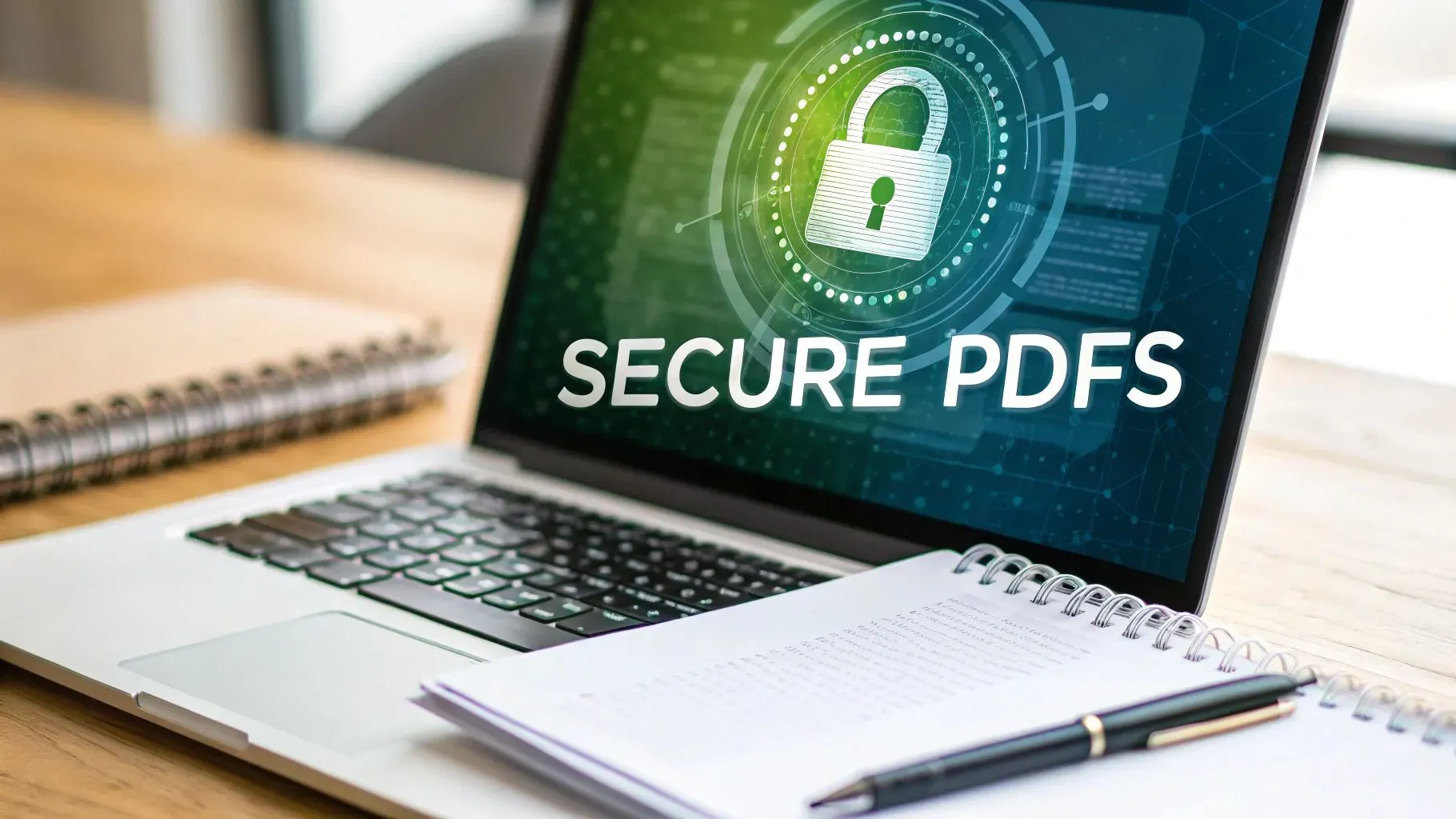
Share with confidence using Filesage. Our Secure PDF feature allows you to lock documents and manage access rights, giving you total control over who views or edits your files.
How Securing your PDFs Work on Filesage
In today's digital-first environment, businesses and individuals share high-stakes documents like contracts, financial reports, and personal records online every day. Without proper security, these files are "open invitations" to data breaches, unauthorized alterations, and identity theft. Securing your PDFs is no longer just a "best practice"—it is a necessity for maintaining professional integrity and legal compliance.
Filesage’s Secure PDF feature is specifically designed for those who share sensitive data daily. The steps are as follows:
1. On the Filesage homepage, click or hover on the PDF dropdown menu and select the Secure PDF menu item.

- On the Secure PDF screen, upload the pdf document you wish to secure and add some permissions to.

- Click on Secure PDF for a dialog of permissions to configure from. Click apply to effect changes made.


- And boom, your secured PDF is ready. You can then download to your local storage and share with confidence!