From Chaos to Crystal Clear: Mastering DOCX to PDF Conversions
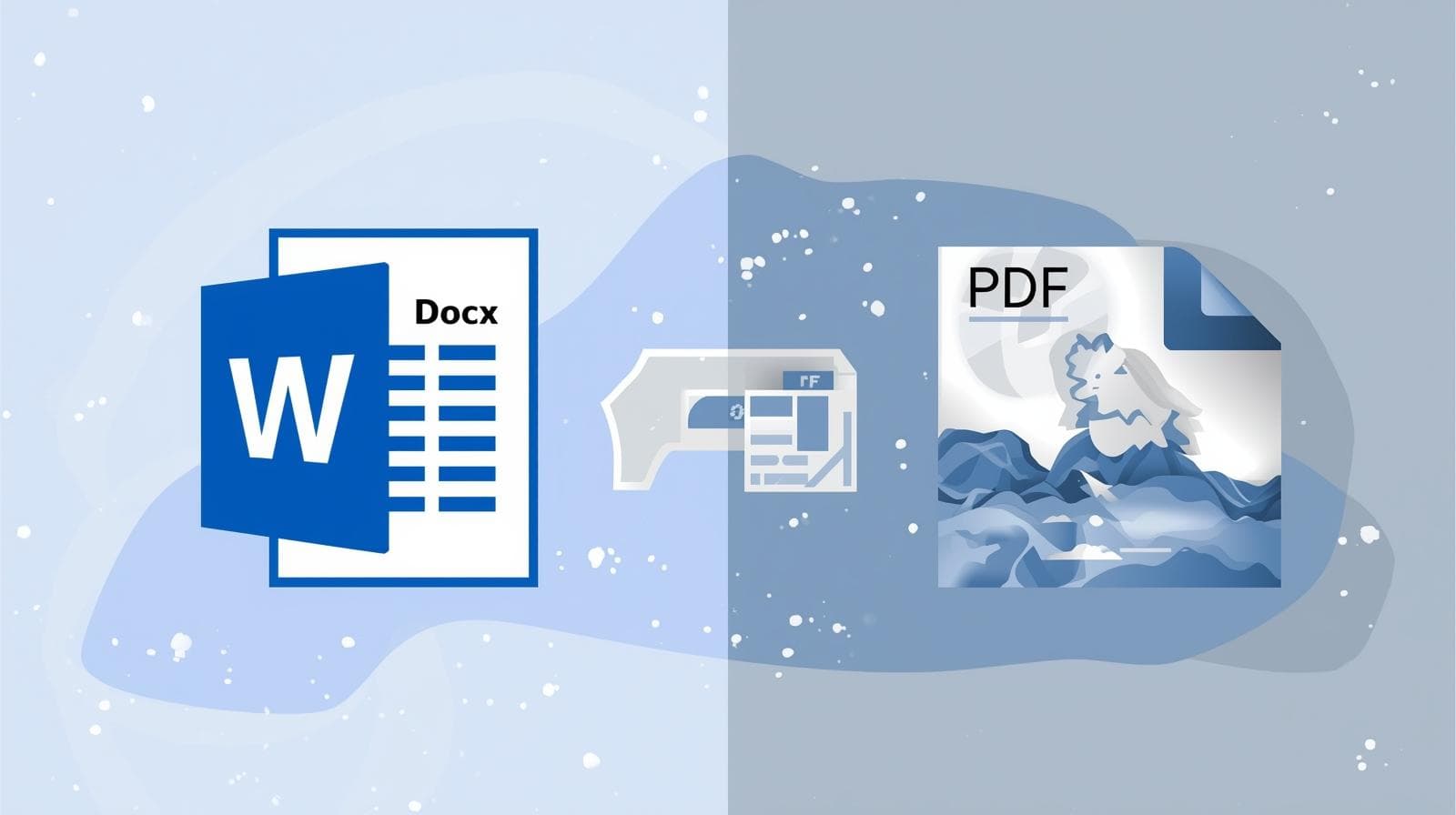
You have spent hours meticulously arranging your text, choosing the perfect imagery, and formatting every page, only to watch it all shift once you save it as a PDF. It is a common frustration: fonts disappear, layouts break, and your polished file suddenly looks completely off with blurry images and misplaced text. The goal of this guide is to help you preserve stunning image quality and layout fidelity during the export process so that your finished document remains professional and true to your original design.
Why Quality Loss Happens (The Technical Culprits)
Understanding why these "unexpected transformations" occur is the first step to preventing them. Several technical factors are usually at play:
• Automatic Image Compression: By default, Word automatically compresses images to lower resolutions to reduce file size, which often results in a loss of visual quality.
• Font Licensing and Embedding: If fonts are not fully embedded, many PDF viewers will replace them with default scripts. This not only changes the look but can disrupt spacing and overall appearance.
• Fluid vs. Fixed Layouts: Word uses a "fluid" layout that adapts to different displays, while PDF is a "fixed" structure. This difference often causes content to reflow unexpectedly during conversion.
• Interactive Element Stripping: Many third-party converters strip out the essential metadata required for active hyperlinks, bookmarks, and form fields, rendering them inactive.
The Professional Online Workflow
The easiest way to maintain quality for professional projects is to use a dedicated PDF tool like Filesage. A typical professional workflow follows these steps:
1. Navigate to a trusted online Word to PDF converter tool.
2. Select or drag and drop your DOCX file into the converter.
3. Download the finished PDF, which should now appear exactly as intended with images and fonts preserved.
Manual Optimization Settings in Microsoft Word
If you do not have a dedicated PDF tool, you can manually adjust Word’s settings to prioritize quality.
To stop Word from automatically lowering your picture quality:
• Navigate to File > Options > Advanced.
• Under the "Image Size and Quality" section, select "Do not compress images in file".
• For the default resolution, select "High fidelity" to ensure the best output.
To preserve sharp visuals, you must manually increase the DPI (Dots Per Inch) selection in Word's advanced settings before you export. A higher DPI ensures that the images in your PDF remain high-resolution and suitable for both digital viewing and printing.
To ensure everyone sees the exact same fonts you do—even if they don't have them installed—you must embed them:
• Go to File > Options > Save.
• Check the box for "Embed fonts in this file" and, importantly, uncheck "Embed only the characters used" to ensure all symbols and scripts render correctly.
Final Checklist and Conclusion
Before you send your document to a client or colleague, perform a final review of the output to catch any layout discrepancies or font shifts early. Remember that predictable formatting and widely supported typefaces are the real keys to a clean, professional conversion.
Why spend hours troubleshooting manual DPI and font settings when a professional PDF tool can automate the entire workflow in seconds? To avoid the hassle of manual settings and ensure the highest quality every time, utilize Filesage to streamline your document conversion workflow.